Know your Pluvia inside out.
Everything you need to set up, use, and care for your water purifier — in one place.
Welcome to Pluvia.
Thank you for choosing Pluvia.
Every unit is designed and manufactured to the highest standards — so you can trust what's in your glass.
We built Pluvia with an internal smart filtration system packed with features. This guide will help you get the most out of every one of them.
Enjoy an unlimited supply of high-quality, healthy, great-tasting water — cold, hot, or ambient — exactly the way you like it.
We care about the same things you care about: your health and your family's wellbeing. We're here to take care of you.
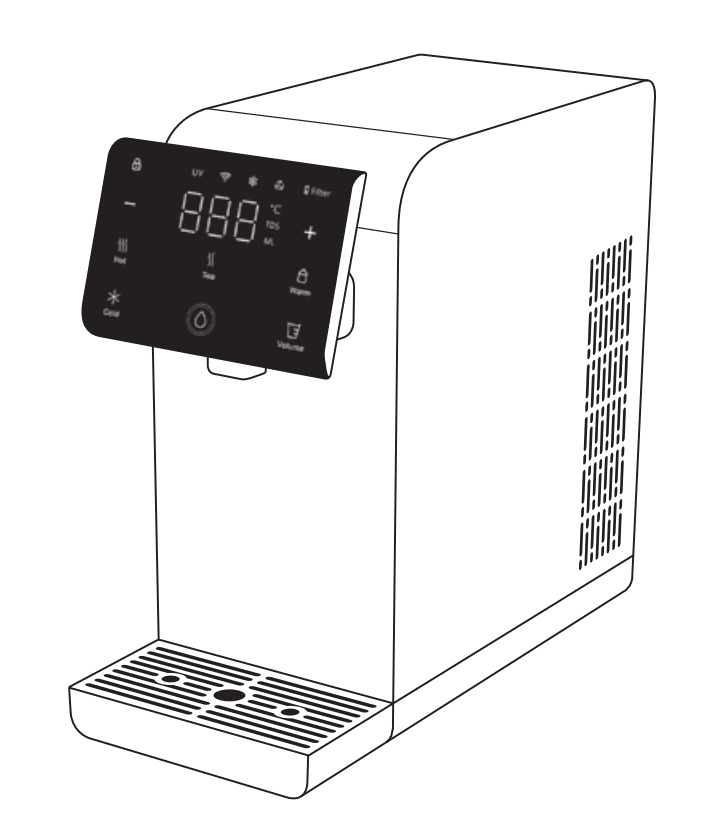

Meet your Pluvia.
Every part has a purpose. Here's what makes up your water purifier.
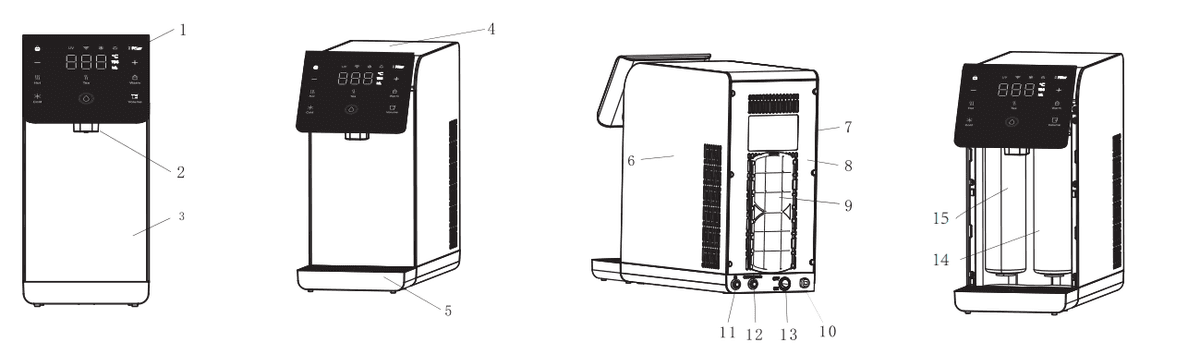
Product Anatomy
Touch panel — controls every function
Dispenses water at your chosen temperature
Removable — gives access to both filters
Top cover protecting the main internal components
Catches drips — slides out for easy cleaning
Outer casing of the device
Outer casing of the device
Houses water inlet, drain outlet, and power cord connections
Keeps debris out of the cooling system
UK plug — no adaptor needed
Quick-connect fitting for your mains supply
Wastewater drain outlet
Toggle for chip cooling (older models — newer models use the touch interface)
Sediment & carbon composite cartridge
RO & post carbon composite cartridge
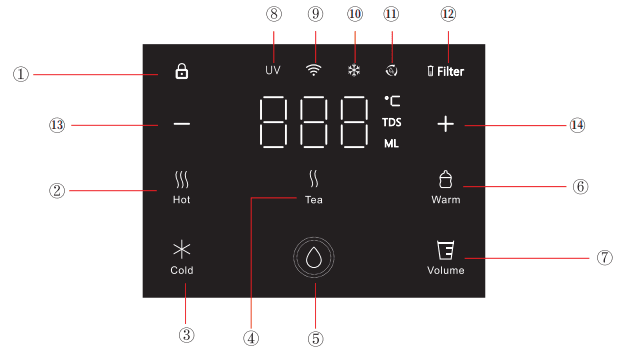
Touch Interface
- Press child lock once, then press hot, tea, or warm, then press dispense to start.
- Hold for 5 seconds to permanently disable. Hold again for 5 seconds to re-enable.
- Automatically reactivates when the screen turns off (unless permanently disabled).
- Press this button first, then press dispense — water flows at your selected temperature.
- Hold for 5 seconds to enter boiling point setting (85–99°C).
- The system saves and remembers your last custom temperature.
- Press this button first, then press dispense — water flows at your selected temperature.
- The system saves and remembers your last custom temperature.
- Press this button first, then press dispense — water flows at your selected temperature.
- The system saves and remembers your last custom temperature.
- Hold cold and + for 3 seconds to enter temperature adjustment mode. Use + and − to set your desired temperature, then wait 3 seconds — the device saves your setting automatically.
- Press cold once to dispense instantly at your saved temperature — no need to press dispense.
- Hold for 5 seconds to toggle chip cooling on or off (default: on).
- 140 ml
- 250 ml
- 500 ml
- 999 ml
- Use + and − to adjust in 10 ml increments. The system remembers your last custom volume.
- If the UV function fails, the indicator flashes for 3 seconds every 6 hours as a reminder.
- Blue light — chip cooling is active.
- White light — insulation mode (maintaining temperature).
- Light off — cooling is turned off.
- Buzzer sounds 3 times every 3 hours once the filter expires — until the filter is replaced and reset.
Combination Key Settings
Cold Water Temperature Mode
 +
+ Hold cold and + for 3 seconds
Enter temperature adjustment mode for cold water. Once in the mode, use + and − to set your desired temperature between 4–10°C (default 4°C). Wait 3 seconds without pressing anything — the device saves your setting automatically.
Ambient Water Flow Rate
 +
+ Hold dispense and − for 3 seconds
Adjust the ambient water flow rate between 650 ml and 850 ml. Default is 750 ml. Each step changes the rate by 50 ml.
Cold Water Flow Rate
+Hold cold and − for 3 secondsAdjust the cold water flow rate: 80%, 90%, or 100%. Default is 100%. Each step changes the rate by 10%.
Buzzer On/Off
+Hold − and + for 3 secondsHold both − and + for 3 seconds to turn the buzzer off — no confirmation sound. Hold again for 3 seconds to turn it back on — you'll hear a confirmation sound.
Night Light On/Off
 Hold tea for 5 seconds
Toggle the night light on or off. The light shows blue by default, turns red when dispensing hot or tea water, purple for warm water, and blue for cold or ambient water.
Installation & setup.
We install it for you — free of charge.
All UK mainland orders include free professional installation by MonsoWater experts. Sit back and let us handle everything.
Any unauthorised installation in the UK mainland will result in the loss of your guarantee and one-way termination of your Smart Service.
Unbox & Unpack
Open the top of the packing case, take out the top foam and its accessories. Put the accessories aside. Unpack the product and install the water collector.
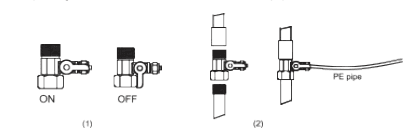
Install Quick Joint
Take out the quick joint and install it on the water pipe.
Install Filters
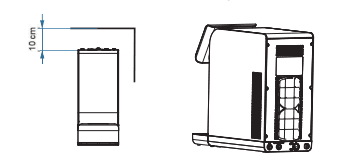
Flush the filters for the first use — turn on the faucet and flush for 10 minutes. Leave at least 10 cm clearance around the air inlet and outlet.
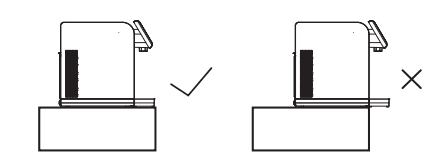
Position the Drip Tray
The drip tray cover must be properly placed inside the machine. No suspending in midair — ensure it sits flat to avoid falling off.
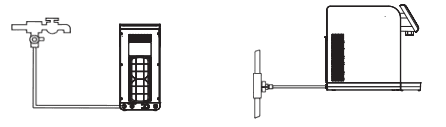
Connect Water Supply
Take out the pin of the quick joint at the rear of the product's base plate. Remove the blue plug, insert the water inlet PE pipe into the quick joint, and tighten the pin. Connect the other PE pipe to the water outlet and route it to your mains water drain or your dishwasher's waste water outlet.
Power On
Plug the power cord into a ground fault interrupter receptacle. After installing, supply power and begin to use your Pluvia.
Filter Safety Reminder
When installing or replacing filters, always turn off the water supply and disconnect the power before installation and replacement.
Five modes. One touch.
Every temperature you need — from boiling to chilled. Adjust hot, tea, and warm on the fly before dispensing. Pluvia remembers your last setting.
Hot
Boiling water for coffee, instant meals, and sterilising. Press hot, then use + and − to set your preferred temperature before pressing dispense.
How to dispense: Press child lock → press hot → press dispense. With child lock off, press hot → press dispense.
Press dispense button to stop.
Tea
Optimal temperature for green, white, and herbal teas. Press tea, then use + and − to set your preferred temperature before pressing dispense.
How to dispense: Press child lock → press tea → press dispense. With child lock off, press tea → press dispense.
Press dispense button to stop.
Warm
Gentle warmth for baby formula, warm drinks, and honey water. Press warm, then use + and − to set your preferred temperature before pressing dispense.
How to dispense: Press child lock → press warm → press dispense. With child lock off, press warm → press dispense.
Press dispense button to stop.
Cold
Refreshingly cold water, on demand. Default temperature is set via combination keys — hold cold and + for 3 seconds to adjust. Temperature cannot be changed before dispensing like other modes.
How to dispense: Press cold once — water flows instantly at your saved temperature.
Press dispense button to stop.
Ambient
Room temperature water at the press of a button. Temperature is not adjustable. Also combines with hot, tea, and warm buttons for heated dispensing.
How to dispense: Press dispense directly to start ambient water.
Press dispense button to stop.
Cold water, ambient water, and volume buttons always remain accessible, even with child lock on.
Hold the hot water button for 5 seconds to enter boiling point mode. Adjust between 85–99°C. The system saves your last setting.
Pour exactly what you need.
Adjust any preset in 10 ml increments using + and −. Set it once, Pluvia remembers it. Each preset has its own adjustable range.
Intelligence built in.
Child Lock
Enabled by default (red light when screen is on). Locks hot, tea, and warm dispensing — cold water and volume buttons remain accessible. Hold for 5 seconds to disable permanently; hold again to reactivate. Auto-reactivates when the screen turns off unless permanently disabled.
UVC Sterilisation
Built-in UV-C light activates automatically when water temperature drops below 65°C. Continuous protection between every pour. If the UV function fails, the light flashes for 3 seconds every 6 hours as a reminder.
Auto-Flush
Automatic flush cycle runs periodically to maintain optimal RO membrane performance. No manual cleaning required.
Night Light
Always on by default, glowing blue. Changes colour by mode: red for hot and tea water, purple for warm water, blue for cold and ambient water. Hold the tea button for 5 seconds (when water is not flowing) to toggle the night light on or off.
WiFi
Coming soon — connect your Pluvia to the Monso app for remote control, usage tracking, and filter alerts.
Standby Mode
After 120 seconds of inactivity, Pluvia enters standby — all lights turn off except the dispense indicator. Press any key to reactivate instantly.
Cooling Toggle
Hold the cold water button for 5 seconds to switch cooling on or off. Blue light means cooling is active, white light means insulation mode, and light off means cooling is off. Default is on.
Buzzer
A chord tone sounds whenever any button is touched — confirming your input. Hold both − and + for 3 seconds to turn the buzzer off (no confirmation sound). Hold again for 3 seconds to turn it back on — you'll hear a confirmation sound.
Filters that tell you when they're done.
| Filter | Lifespan |
|---|---|
| CAC Sediment & Carbon | 2,100L / 6 Months |
| ROC RO & Post Carbon | 3,000L / 12 Months |
The sediment layer filters out sand, dust, mud, iron rust, and larger impurities. The pre-carbon layer then absorbs residual chlorine, unusual colours, odours, and organic compounds — protecting the RO membrane and improving overall water quality.
Reverse osmosis at 0.0001-micron accuracy intercepts pesticides, bacteria, viruses, heavy metal ions, and other harmful dissolved substances. The post carbon stage further polishes taste and removes any residual odour, delivering clean, fresh-tasting water.
Remove drip tray
Slide out the drip tray from the front of the unit.
Remove front panel
Gently pull the front panel away to expose the filter compartment.
Swap the filter
Turn the old filter to release it. Insert the new filter and twist until it locks into place.
Reassemble
Reattach the front panel and slide the drip tray back in.
Flush filters
Run at least 1L of water from the dispense button and another 1L from the cold button to flush the filters and make them ready for proper use.
Enjoy pure water
Your Pluvia is ready — fresh, clean, purified water on demand once again.
When to Replace
The filter icon turns red and flashes when it's time to change your filter(s). Each filter has a lifespan in litres and months — whichever limit is reached first is when your Pluvia will alert you. Refer to the filter table above for exact lifespans. Once expired, the buzzer sounds 3 times every 3 hours until the filter is replaced.
Keep it running smoothly.
Auto-Flush
The auto-flush runs periodically and flushes the RO membrane system to maintain optimal performance. Fully automatic — no action required.
Anti Dry-Burning
If the heating module runs without water, the anti dry-burning device disconnects automatically to prevent damage. It cannot self-reset — a professional technician must restore it. This safety design complies with national safety requirements.
Normal Sounds
During heating, the heating tube may generate slight noises. This is completely normal and indicates the instant-heat system is working as designed. No action needed.
The details.
Quick fixes.
Equipment Errors
— contact support if these appearIce Formation Alarm
Inlet water temperature is near freezing (0–1°C), or voltage sensor issue detected.
Over-Temperature Warning
Internal temperature has exceeded 106°C.
Over-Temperature Alarm
Internal temperature has exceeded 110°C.
Safety & warnings.
To reduce the risk of fire, electrical shock, or injury — please read and follow all safety instructions below.
Keep away from children. The child lock is enabled by default — keep it on if little ones are nearby.
Never submerge. The unit, cord, and plug must stay dry at all times.
Use the correct power source. Match the voltage and frequency on the product label (220–230V, 50/60Hz for UK).
Unplug when not in use. Especially before moving, cleaning the exterior, or replacing filters.
Damaged cord or malfunctioning unit? Stop using immediately and contact our support team to arrange inspection or repair.
Keep away from bathtubs, washbowls, swimming pools, and any area where immersion or splashing could occur.
Do not insert objects through any openings while the unit is operating. Avoid contact with internal moving parts.
Intended for indoor domestic use — homes, offices, hotels, B&Bs, and similar environments.
Not for unsupervised use by children or persons with reduced physical or sensory capabilities without proper instruction.
Do not store flammable substances such as aerosol cans near the appliance.
When positioning, ensure the supply cord is not trapped or damaged.
Maintain inlet water pressure between 0.1 and 0.4 MPa for optimal operation.
Leave at least 10 cm clearance around the unit so the air inlet and outlet remain unblocked.
Always turn off water supply and unplug before installing or replacing filters.
Explore more